
Friday afternoon. A stack of 30 quizzes is on your desk. You have 45 minutes before you need to leave.
Most teachers grab a calculator. Count correct answers. Divide. Multiply by 100. Write the score. Pick up the next paper. Repeat 29 more times. That takes around 90 minutes. Every single time.
According to a 2025 Learnosity study of 258 US teachers, the average educator spends 9.9 hours a week on grading. RAND’s 2025 report puts the average teacher workweek at 49 hours total. A big slice of that extra time is pure arithmetic on tests that have clear right and wrong answers.
There is a simpler way to handle it. The Teacher Grader is a free classroom grading tool built specifically for this. Enter wrong answers, get an instant result, move to the next paper. Most teachers finish 30 papers in under 10 minutes using it the right way.
This guide shows you how to score 30 tests in just 10 minutes without burnout. By following the grading process, teachers cansave time, reduce stress, and shift their focus to supporting student learning.
Key Takeaways:
- The Teacher Grader is a free, no-signup grading tool for teachers. It is built for paper-by-paper grading sessions.
- Set your total questions and grading scale once. They stay locked for the whole session.
- Use the +1 Wrong button to tap wrong answers as you mark. No typing between papers.
- Next Paper Mode clears wrong answers automatically and tracks your session count.
- The grading chart shows every possible score for your test. Use it after paper 1 to skip recalculation entirely.
- Every result shows percentage, letter grade, and GPA automatically.
- Works on any device. No login needed.
What is the Teacher Grader Tool?
The Teacher Grader is a free teacher grading tool designed for paper-by-paper classroom grading. You enter wrong answers for each student one at a time. The score appears instantly. It is not a general grade calculator. It is not a student self-check tool. It is built for one specific job: helping teachers quickly grade multiple tests, one paper at a time, with grading consistency across every result.
Busy teachers use it because it removes repetitive math from the scoring process entirely. Every paper follows the same repeatable workflow. You focus on checking answers. The tool handles the score conversion.
If you’ve ever wondered why some teachers seem to grade faster than everyone else, here’s the secret: they ditched the old‑school math. Manual grading eats up hours, but when you switch to an easy grader, the difference is night and day.
Think about it — every calculation, every tally, every correction done by hand adds friction. Multiply that across dozens of papers, and you’re burning time you’ll never get back. With an easy grader, those calculations are instant. That’s why the easy grader vs manual grading comparison isn’t just theory. It shows the real numbers behind the time saved.
Teacher Grader vs Easy Grader vs Class Grader: Which One Do You Need?
Teachers often ask which tool to use. Here is the quick breakdown:
| Tool | Best For | How You Enter Scores | What You Get |
|---|---|---|---|
| Teacher Grader | Paper-by-paper classroom grading | One student at a time | %, Letter Grade, GPA per paper |
| Easy Grader | One quick score lookup | Total questions plus wrong answers | %, Letter Grade, GPA |
| Class Grader | Grading all students at once | All students in a single session | %, Letter Grade, GPA for the whole class |
Use the Teacher Grader Calculator when you are working through a stack of papers one by one.
Use the Easy Grader when you just need a single quick score check.
Use the Class Grader when you want to batch the entire session at once.
What Results the Teacher Grader Shows You
Every paper you grade gives you three things right away:
- Percentage score, for example, 84%
- Letter grade, for example, Grade: B
- GPA, for example, GPA: 3.0
Most free grading tools show only a percentage. The Teacher Grader also shows GPA automatically alongside the letter grade. If you need to talk to a parent about a student’s standing or prepare report card data, the number is already there.
How to Set Up the Teacher Grader Before You Start
Good setup takes 60 seconds. It makes every paper in the stack faster.
Step 1: Choose Your Grading Scale
Click the Grading Scale dropdown at the top. You have four options:
| Scale | When to Use It |
|---|---|
| Standard A–F + GPA | Elementary and middle school, everyday tests and quizzes |
| Plus/Minus A+/A/A- + GPA | Secondary school or college, when you need detailed grade differentiation |
| Pass / Fail | Practical assessments, certifications, basic benchmarks |
| Percentage Only | When your school reports raw percentages with no letter grades |
Select your scale once. It applies to every paper and to the grading chart at the same time. You do not change it again during the session.
Not sure which scale your school follows? The Syllabus Grading Breakdown guide explains how grading policies work across US schools, from elementary through high school.
Step 2: Enter Total Questions Once
Type the number of questions in the Total Questions field. For a 25-question quiz, type 25. For a 40-question test, type 40.
You do this once. Next Paper Mode locks it for the whole session. You will not re-enter it for paper 2, paper 15, or paper 30.
This step is what most teachers skip the first time they use the tool. Set it before you pick up paper 1. Everything else in the workflow depends on it.
How to Grade 30 Tests Quickly: The Step-by-Step Workflow
The Easy Teacher Grader tool is built around three mechanics that work together. Use all three and the quick grading workflow comes together naturally.
The “+1 Wrong” Button: Tap While You Mark
Pick up paper 1. Start checking answers.
Every time you mark a wrong answer, tap the +1 Wrong button once. Tap once per wrong answer. The count goes up automatically. You do not finish the paper first, count all wrong answers, then type a number. You mark and tap at the same time.
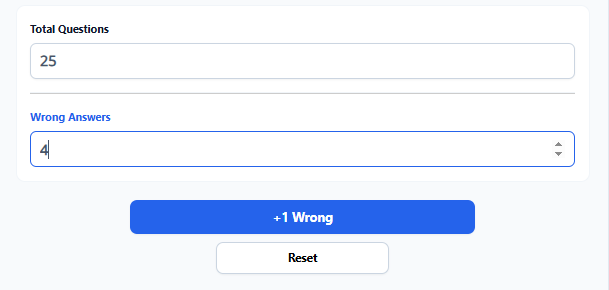
This one change is where most of the time savings come from. Old method: finish the paper, count wrong answers, type the total, calculate the score. New method: mark and tap together. By the time you reach the last question, the result is already on screen.
Here is what each wrong answer is worth, by test size:
| Test Size | Each Wrong Answer Costs |
|---|---|
| 20 questions | 5% per wrong answer |
| 25 questions | 4% per wrong answer |
| 40 questions | 2.5% per wrong answer |
| 50 questions | 2% per wrong answer |
The tool handles this automatically. You do not need to know the math.
Reading the Result
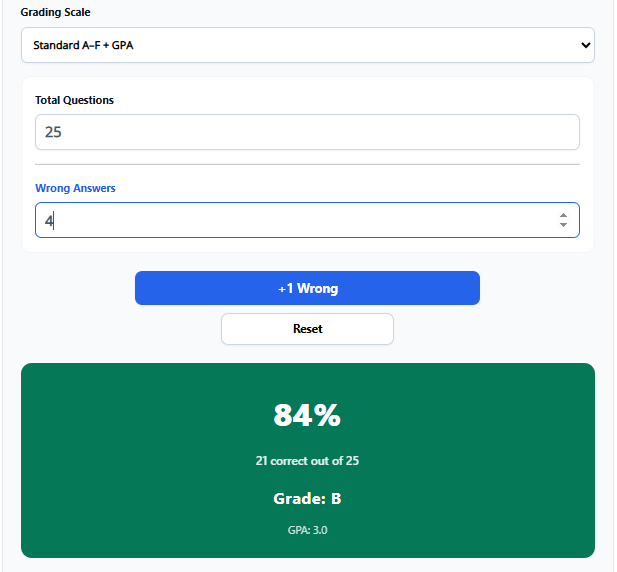
After entering wrong answers, the result card shows:
- Percentage, large and green, center of the screen
- “X correct out of Y,” the exact correct-answer count
- Letter grade, based on your selected scale
- GPA, calculated automatically
Example: 25 total questions, 4 wrong.
- Correct answers: 25 – 4 = 21
- Score: (21 / 25) x 100 = 84%, Grade: B, GPA: 3.0
Write the score on the paper. Set it aside. Move on.
Next Paper Mode: Move Through the Stack Without Resetting
Enable the Next Paper Mode checkbox before grading paper 1. This is the session workflow feature that keeps everything moving.
After you write the score on a paper, click Next Paper. The tool:
- Clears wrong answers automatically
- Keeps Total Questions locked (no re-entry needed)
- Moves focus to the Wrong Answers field, ready for the next paper
- Updates the session counter at the top (“Papers graded this session: 3”)
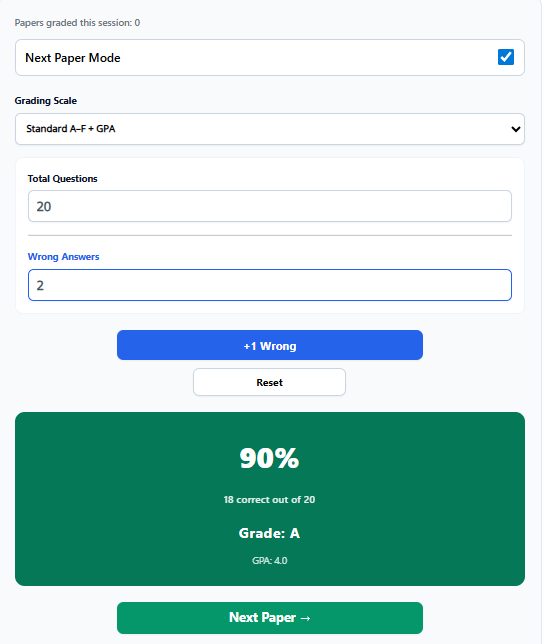
That counter is genuinely useful. It tells you how many papers you have finished without counting the “done” pile yourself.
The Grading Chart: Skip Recalculation for Every Paper After the First
Below the result card is the Grading Chart. It shows every possible score for your test size in one table, with columns for Wrong, Correct, Score %, Grade, and GPA.
For a 25-question test:
| Wrong | Correct | Score % | Grade | GPA |
|---|---|---|---|---|
| 0 | 25 | 100% | A | 4 |
| 1 | 24 | 96% | A | 4 |
| 2 | 23 | 92% | A | 4 |
| 3 | 22 | 88% | B | 3 |
| 4 | 21 | 84% | B | 3 |
| 5 | 20 | 80% | B | 3 |
| 6 | 19 | 76% | C | 2 |
| 7 | 18 | 72% | C | 2 |
The chart loads the moment you enter Total Questions. It does not need a paper to be graded first.
How to Score 30 Tests in Under 10 Minutes?
Most teachers spend 30 to 45 seconds calculating each paper manually. Multiply that by 30 papers and you are spending 15–20 minutes on math, not teaching. This guide shows how the Teacher Grader reduces that to under 10 minutes — using two features most teachers never fully use.
Step-by-Step Workflow for a Stack of 30 Papers
Here is how experienced teachers use it: grade paper 1 with the +1 Wrong tap method to get the chart loaded on screen. Then print the chart or leave it visible. For papers 2 through 30, just count wrong answers on each paper, find that row in the chart, write the score. No calculator input needed for the rest of the session. Walk through the exact session setup: enter total questions once, select grading scale, enable Next Paper Mode. Then describe the per-paper rhythm.
That is the fastest way to score tests in less time. The tap-and-chart combination is what makes 30 papers in under 10 minutes realistic, not just a headline.
Why Wrong Answers Are Faster Than Correct Answers
Short explanation: teachers circle wrong answers while reading, not count correct ones. +1 Wrong matches the physical marking action.
Real Example: Ms. Torres’s 20-Question Quiz
Use the classroom workflow example from Part 3 of this audit as the worked example. Reference it directly.
Time Comparison:
Small table showing manual grading vs Teacher Grader for 20, 30, and 40 paper stacks.
Ready to try it? The Teacher Grader is free and works on any device — phone, tablet, or desktop. No signup required. Explore grade calculator tools to cover any additional grading needs
Why Paper-by-Paper Grading Gives You More Than Just Scores
Some teachers wonder why they should use the Teacher Grader instead of the Class Grader, which lets you enter all student scores at once.
Both are useful. But for everyday classroom grading, the paper-by-paper approach gives you something batch processing does not: direct contact with each student’s work.
When you grade one paper at a time, you notice things. You see the student who left the last eight questions blank. You spot the one who got every reading question wrong but aced the vocabulary section. You notice the paper that looks rushed compared to that student’s usual effort.
These patterns shape what you do in class on Monday. They are easy to miss when you process scores as a batch.
There is also a practical side. Most teachers do not have a dedicated hour-long grading block. They grade during a free period. On their phone between classes. At the kitchen table at 8 PM. The paper-by-paper workflow fits into real teaching life in a way that a batch session does not.
I have talked to many teachers who switched from manual calculation to this workflow. Nearly all of them said the same thing: they started catching performance patterns they had missed for years. When teachers talk about saving time, it usually comes down to the grading method they choose. For a detailed comparison of bulk grading vs individual grading, you’ll see that each approach work in different classroom scenarios. Bulk grading is perfect when consistency matters across large groups, while individual grading gives you the flexibility to tailor feedback more personally.
But here’s the kicker: if you want to reduce your grading time even further, the 10 secrets to cut grading time reveal exactly how teachers streamline every step of the workflow. From smarter rubrics to automation, these strategies make grading faster, easier, and far less stressful.
When Should You NOT Use the Teacher Grader?
Using the wrong tool for the wrong assessment does not just slow you down. It gives you incorrect scores.
Do not use the Teacher Grader for:
- Essays and written responses. These need human judgment. A formula cannot evaluate argument quality, evidence, or writing skill.
- Rubric-based projects. Presentations, lab reports, and group work involve qualitative decisions no grading tool can make.
- Partial-credit math problems. When a student uses the right method but gets the wrong answer, you decide the credit. The tool does not.
- Weighted tests. If different sections carry different point values, the equal-weight formula produces the wrong result.
The Teacher Grader is the right tool when:
- Every question is worth the same number of points
- Answers are clearly right or wrong, with no partial credit
- The assessment is objective: multiple choice, true/false, spelling, fill-in-the-blank, short factual answers
Quick test before you start: does every question count equally? If yes, use the Quick Teacher Grader . If no, a different approach is needed.
The Bottom Line
Most teachers spend nearly 10 hours a week on grading. A lot of that time is arithmetic on tests that have clear right and wrong answers. The Teacher Grader Calculator removes that arithmetic. It is a purpose-built grading tool for teachers who grade papers one at a time. You set your scale and total questions once. You tap +1 Wrong while you mark. You hit Next Paper. You repeat. By the time you reach the end of the stack, the grading session is done.
30 papers in under 10 minutes is not an exaggeration. It is what happens when the tap method, Next Paper Mode, and the grading chart work together the way they were designed to.
Start grading with the Teacher Grader now. Free. No account needed. Works on any device.
Grading your entire class at once is a completely different kind of job. Instead of slogging through paper by paper, the class grading in 15 minutes workflow shows exactly how teachers handle full rosters quickly and efficiently. It’s about batching the process, cutting out wasted steps, and moving through assignments at scale.
On the other hand, sometimes you just need a quick score check. That’s where the Easy Grader Calculator comes in. It requires no setup, no login, just an instant result in under 10 seconds. All six free grading tools are in one place: Grade Calculator Hub.
The real win? Knowing when to use each approach. Bulk workflows save hours across a semester, while instant grading tools keep you nimble for one‑off checks. Together, they make grading faster, easier, and far less stressful.
Resources
- Learnosity, The Grading Problem, 2025 https://learnosity.com/resources/the-grading-problem/ Source: 9.9 hours per week on grading; 95% of teachers take grading home; 62% name it one of the worst parts of the job.
- RAND Corporation, State of the American Teacher Survey, 2025 https://www.rand.org/pubs/research_reports/RRA1108-12.html Source: average 49-hour teacher workweek; grading as a main contributor to overtime.
- University of Waterloo Centre for Teaching Excellence, Fast and Equitable Grading https://uwaterloo.ca/centre-for-teaching-excellence/catalogs/tip-sheets/fast-and-equitable-grading Source: research-based grading consistency and accuracy principles.
- National Education Association, Research on Teacher Workload https://www.nea.org/professional-excellence/student-engagement/tools-tips/research-spotlight-homework Source: K-12 teacher grading workload context and professional standards.
____________________________________________________________________________
Frequently Asked Questions (FAQs):
How much time does grading actually take for most teachers?
Grading takes far more time than most people realize. A 2025 Learnosity study of 258 U.S. teachers found they spend an average of 9.9 hours a week grading, more than a full workday. RAND’s 2025 report puts the total teacher workweek at 49 hours, well above contracted time. Paper‑based tests and quizzes make up much of that math‑heavy workload, which is why tools like the Teacher Grader exist to remove the arithmetic from the process.
What types of tests is the Teacher Grader NOT suitable for?
There are three cases where it gives inaccurate results. First, weighted assessments tests with sections worth different points produce incorrect scores under equal‑weight formulas. Second, essays and written responses that require human judgment. Third, rubric‑based projects where qualitative criteria determine grades. The Teacher Grader is designed for equal‑weight, objective assessments only: multiple choice, true/false, spelling, and fill‑in‑the‑blank. If every question counts the same, it works perfectly.
Why does grading one paper at a time help you catch things that bulk grading misses?
Grading one paper at a time helps you catch details bulk grading misses. Batch processing gives totals, but sequential grading lets you see patterns: the student who left the last eight questions blank, the one who aced vocabulary but missed comprehension, or the paper that looks rushed compared to usual work. These observations shape tomorrow’s lessons but disappear when you enter 30 scores at once.
How does using the grading chart for papers 2–30 work in practice?
After grading paper 1 with the +1 Wrong tap method, the grading chart is already loaded. It displays every possible score for your test size, percentage, letter grade, and GPA for each wrong‑answer count. For the rest of the stack, you don’t need the calculator at all. Just count wrong answers, find the matching row, and record the score. The current paper’s row highlights automatically in blue, so one chart load covers the entire session.
What happens to the session if I close the browser or switch tabs?
The session resets. Total Questions, wrong‑answer count, and the counter all clear. This is normal for browser‑based tools. The practical fix: print the grading chart before you start. Once you enter Total Questions and the chart loads, use “Print” or the “Download PDF” functions to save a copy. Even if the session closes, the chart remains on paper or as a PDF. Many teachers print it at the start of each session and keep it at their desk.
Does grading accuracy stay consistent through a long session — like grading 30 papers in a row?
Yes, because the tool removes the step where human error enters. Manual percentage calculations involve division, multiplication, and rounding, which under fatigue can lead to mistakes. By paper 25 on a Tuesday evening, it’s easy to transpose a number or misread a result. The Teacher Grader applies the same formula every time: (Correct ÷ Total) × 100. The calculation is exact for each paper, ensuring consistency across the entire stack. That reliability is one of the main reasons teachers prefer a calculator over mental math for large sessions.
How does the Teacher Grader compare to grading in an LMS like Google Classroom or Canvas?
LMS gradebooks track and record grades over time. They’re record‑keeping systems, not live scoring tools. The Teacher Grader is built for the active moment of checking paper quizzes and producing instant scores. You can grade quickly on your phone, then transfer results into your LMS afterward. The two serve different parts of the workflow.
Is there a way to handle end-of-semester grading faster when every class has a test the same week?
Yes. The Teacher Grader workflow repeats easily across multiple classes. Set Total Questions, grade Class 1 with Next Paper Mode, note the session count, then reset for Class 2. The grading chart reloads instantly for any test size. Many teachers also print charts in advance, so switching between a 25‑question and 30‑question test is seamless. To grade an entire class in 15 minutes, teachers can use the batch grading calculator to process all papers efficiently.
Why do some teachers still do the math manually when free grading tools exist?
Mostly habit. Many learned workflows around mental math or EZ Grader charts before online tools were common, and some hesitate to change routines mid‑semester. Others believe manual calculation is more accurate, but it isn’t. For equal‑weight tests, (Correct ÷ Total) × 100 is always the formula. A tool runs it exactly, while a tired human on paper 28 may not.

Olivia Grant is a former K–12 teacher (12 years) and Lead Content Strategist at EasyGraderHub, holding an M.Ed. in Curriculum & Instruction from the University of Washington. She writes EasyGraderHub’s grading guides and reviews its calculators for classroom accuracy. Read more about Olivia.