
If you have a stack of 20 or 30 quizzes, the actual math can become surprisingly repetitive. You check each paper, count wrong answers, calculate the percentage, assign a letter grade, and then enter the result in your gradebook.
During my teaching career, I learned that the calculation itself was one of the easiest parts of grading to streamline. I spent 12 years in a K–12 classroom, and I know exactly what that pile feels like at 4pm on a Tuesday. Doing that math by hand takes most of an evening. With a simple method and a free teacher grading calculator, you can cut that time down a lot.
For a straightforward objective test, a simple batch workflow can make the process much faster. The 15-minute example below is a timing model for a specific type of grading session, that every class or assignment can be graded in 15 minutes. This is the method I settled on during my own teaching career, and it’s the one I still recommend to teachers today. This guide walks you through it, and also covers where it works well and where it doesn’t.
Key Takeaways
- The 15-minute workflow works best for objective quizzes and tests with clear right-or-wrong answers.
- The time savings come from removing repeated percentage calculations and grade lookups, not from skipping the actual checking of student work.
- Class Grader lets you enter the total questions and a list of student wrong-answer counts, then calculates the class results together.
- Your school’s grading scale, rounding rules, extra-credit policy, and gradebook process still control the official grade.
- Essays, projects, rubrics, and assignments with substantial partial credit still require teacher judgment.
What Does It Take to Grade a Class Quickly?
Before trying to make grading faster, separate the work into two parts.
The first part is evaluating the student’s work. You still need to check answers, apply the answer key, award partial credit when appropriate, and review anything that needs teacher judgment.
The second part is turning that result into a grade. For an objective test, this usually means calculating correct answers, converting the score to a percentage, applying your grading scale, and recording the result.
That second part is where a calculator can remove repetitive work. Pew Research Center found that 84% of U.S. public K–12 teachers say they do not have enough time during regular work hours for tasks such as grading, lesson planning, paperwork, and email.
That does not mean every teacher should try to grade every assignment in 15 minutes. It means repetitive tasks are worth examining when you are trying to make your grading workflow more manageable.
The 15-Minute Grading Method
The simplest version of this method uses four stages:
- Confirm your grading rules.
- Check the student papers and record wrong answers.
- Calculate the class results in one batch.
- Review and record the grades.
The key is to avoid doing the same calculation separately for every student.
For example, suppose you have 30 students taking a 20-question multiple-choice quiz. If the papers are already marked and you only need to count errors, you can record each student’s wrong-answer count and process the class together.
A timing model
If the calculation and recording portion averages about 25 seconds per student:
30 students × 25 seconds = 750 seconds
750 seconds equals 12.5 minutes.
Add a few minutes for setting up the grading scale, checking your list, and reviewing the results, and the total can approach 15 minutes.
This is a worked timing example, not a measured universal benchmark. Your actual time will depend on class size, test length, answer-checking speed, feedback requirements, and how grades are entered into your school system.
Step 1: Confirm Your Grading Scale
Before grading the stack, check the grading policy that applies to the assignment.
For illustration, this article uses the common 10-point percentage scale:
- A: 90–100%
- B: 80–89%
- C: 70–79%
- D: 60–69%
- F: Below 60%
This is a common U.S. reference scale, but it is not a universal school policy. NCES notes that grades can be reported using different scales and that grading practices vary across schools, districts, and states.
Your school may use plus/minus grades, different percentage cutoffs, standards-based grading, pass/fail, or another system.
I learned to check the grading scale before starting a large stack because changing the rule halfway through a grading session creates unnecessary rework.
Step 2: Confirm How the Test Is Scored
For a simple objective test, the calculation is straightforward.
Correct answers = Total questions − Wrong answers
Then:
Percentage = (Correct answers ÷ Total questions) × 100
For example, if a student misses 3 questions on a 20-question test:
20 − 3 = 17 correct
17 ÷ 20 × 100 = 85%
Using the example scale above, that is a B.
If questions have different point values, do not treat every missed question as one point. Convert the assessment to its actual point structure first.
For example, a test could contain:
- 20 multiple-choice questions × 1 point = 20 points
- 5 short-answer questions × 2 points = 10 points
- 30 total points
In that situation, the calculation should use points earned and points possible, not simply the number of questions.
Step 3: Check the Papers and Record the Results
This is still the teacher’s job.
For an objective test, work through the papers using your answer key. Count the incorrect answers and write the number somewhere easy to reference.
I prefer to keep the paper-checking step separate from the calculation step. Once I know that a student missed 3 questions, I do not need to stop and calculate 85% before moving to the next paper.
That small separation keeps the grading process focused. You are checking answers first and calculating scores afterward.
For essays, projects, and rubric-based assignments, this step takes longer because the score requires professional judgment. A calculator can process the final points, but it cannot decide whether a student’s argument deserves 3 or 4 points on your rubric.
Step 4: Grade the Entire Class With Class Grader
This is where the batch workflow becomes useful.
Instead of calculating every student separately, enter the total number of questions once. Then paste the student names and their wrong-answer counts into the student-score field.
The current Class Grader interface also lets you select the grading scale before processing the class. After you click Grade Class, the results appear together in a table rather than requiring a separate calculation for every paper.
The workflow is simple:
- Enter Total Questions.
- Select the appropriate Grading Scale.
- Enter each student’s name and wrong-answer count.
- Click Grade Class.
- Review the class results.
- Download the CSV report if you need a file for your records
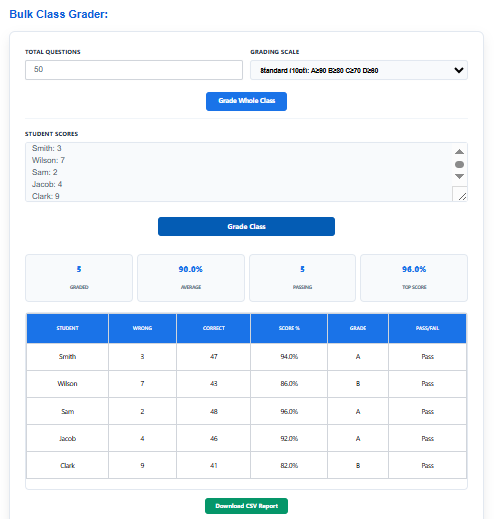
The tool’s results table shows the student, wrong answers, correct answers, percentage, letter grade, and pass/fail result. The summary area also shows class-level information such as the number graded, average, passing count, and top score.
What the Class Grader Looks Like in Practice
The screenshot below shows a 50-question class entered into the calculator.
Five students are entered with their wrong-answer counts:
- Smith: 3 wrong
- Wilson: 7 wrong
- Sam: 2 wrong
- Jacob: 4 wrong
- Clark: 9 wrong
The calculator converts those entries into the complete results:
| Student | Wrong | Correct | Score | Grade |
|---|---|---|---|---|
| Smith | 3 | 47 | 94% | A |
| Wilson | 7 | 43 | 86% | B |
| Sam | 2 | 48 | 96% | A |
| Jacob | 4 | 46 | 92% | A |
| Clark | 9 | 41 | 82% | B |
The class average in this example is 90%.
The important point is not the sample scores. It is the workflow. Once the wrong-answer counts are known, the repeated percentage calculations do not have to be performed manually for each student.
Why I Use Batch Grading for Objective Tests
During my teaching career, I found that repetitive calculations became especially annoying when several classes had taken the same type of quiz.
The answer checking still needed my attention. The math did not.
That is why I prefer to separate the two jobs. I check the student work first, record the score information, and then let the calculator handle the repeated arithmetic.
The Class Grader is particularly useful here because it is designed around the whole class, rather than making you calculate one student’s result and then start over.
What the Class Grader Actually Saves
A calculator does not make the papers grade themselves.
It removes specific repetitive steps:
- calculating percentages
- converting scores to letter grades
- looking up the grading scale repeatedly
- calculating correct-answer totals
- checking the same arithmetic again
- organizing the results into one class table
That distinction matters.
I would never tell a teacher that using a calculator means the entire grading process takes 15 minutes. Checking 30 papers, writing feedback, handling partial credit, and entering grades into an LMS can take much longer.
The more accurate claim is that batch calculation can remove a repetitive part of the grading workflow.
When This 15-Minute Method Works Best
This approach is most useful when the assignment has a clear scoring rule.
Good examples include:
- Multiple-choice quizzes
- True/false tests
- Matching assessments
- Spelling tests
- Objective math drills
- Short practice assessments
- Tests with a fixed point total
The workflow is less suitable when the score depends heavily on judgment.
For example, an English essay may require a rubric, comments, and evaluation of ideas. A science lab report may combine numerical points with written analysis. Those assignments should still be graded using the appropriate rubric or scoring criteria.
The Class Grader can help with the numerical portion of a mixed assessment, but it should not replace the teacher’s evaluation.
What About Different Point Values?
This is one place where teachers need to be careful.
Suppose a test is worth 50 points. A student loses 8 points across multiple sections.
You can calculate the student’s score as:
50 − 8 = 42 points earned
Then:
42 ÷ 50 × 100 = 84%
The important detail is that the 8 represents points lost, not necessarily eight questions.
If your assessment contains questions worth different numbers of points, calculate the student’s total points earned and total points possible first.
That keeps the calculation mathematically correct.
What About Extra Credit?
Extra credit depends on your grading policy.
Do not assume that every school adds bonus points in the same way. Some teachers add bonus points to an assignment, while others handle extra credit within a broader course-grade calculation.
For a simple test, I recommend keeping the base score separate until you know exactly how the extra credit should be applied.
For example, if a student earns 42 out of 50 points, calculate the base score first:
42 ÷ 50 × 100 = 84%
Then apply the extra-credit rule your school or course uses.
If the extra credit affects an overall weighted course grade rather than one test, a weighted-grade calculation may be more appropriate than a class test calculator.
What About Curved Grades?
Be careful with the word curve.
A curve can mean different things in different classrooms. One teacher may add five points to every student’s score. Another may change the grade cutoffs or use a statistical method.
If your policy specifically says add 5 points to every student’s score, then you can adjust the student’s earned points before applying the grading scale.
For example:
- Original score: 42/50
- Curve: +5 points
- Adjusted score: 47/50
- Percentage: 94%
That is different from saying that every “curve” should be handled by subtracting five from the number of wrong answers.
Always use the actual curve method specified by your course or school.
How to Avoid Mistakes When Grading Fast
Speed should not come at the expense of consistency.
I use a short checklist before processing a class:
1. Check the total
Make sure the total number of questions or points is correct.
2. Check the grading scale
Confirm the scale before calculating the class.
3. Check the student list
Make sure every paper has the correct student name.
4. Check unusual scores
Look again at missing work, unusually high scores, or scores that do not make sense.
5. Review before recording
A calculator can perform the arithmetic consistently, but it cannot know whether you entered the wrong student’s score.
That is an important distinction. Automated arithmetic reduces calculation work; it does not remove the need to review your inputs.
A Faster Workflow I Learned to Trust
If I were grading a 30-student objective quiz today, my workflow would be:
First: confirm the grading scale and total questions.
Second: keep the answer key beside the papers and check each paper.
Third: record only the information needed for the calculation, such as the student’s name and wrong-answer count.
Fourth: process the class together in Class Grader rather than calculating each percentage separately.
Fifth: review the results before transferring or exporting the grades.
This keeps the human part of grading with the teacher and the repetitive arithmetic with the calculator.
When Individual Grading is Better
Manual grading of a 30-student class often takes an hour or more, since you’re doing the same math over and over by hand. In my experience, using a calculator cuts that down to well under half the time, though your exact speed will depend on your test length and how fast you count wrong answers.
Class Grader: My Go-To Features
Once I started using Class Grader instead of a handheld calculator and a paper chart, grading stopped eating my evenings. Here’s what I actually use, in the order I use it:
Bulk score entry. I don’t enter one student at a time. I paste in a list with each student’s name and wrong-answer count, one line per student, and the calculator reads the whole list at once. For a class of 28 or 30, this alone saves the most time.
One-click whole-class grading. After I paste the list, I click “Grade Whole Class” once. I don’t click through each student individually, which is normally my common practice when I’m short on time between periods.
An instant class summary. As soon as I grade the list, I get the number of students graded, the class average, how many passed, and the top score, all in one row of numbers. I use this to get a quick read on whether a test was too hard before I even look at individual papers.
A full results table. Below the summary, I get a table with each student’s wrong-answer count, correct-answer count, percentage, letter grade, and pass/fail status. I scan this to spot outliers, like a student who normally passes but failed this time.
A downloadable CSV report. When I’m done, I click “Download CSV Report” and drop the file straight into my gradebook. I experienced enough copy-and-paste errors early in my career that I don’t do manual re-entry into my gradebook software anymore if I can avoid it.
The grading scale is also selectable, so I set it to match my school’s policy (a standard 10-point scale, in my case) before I grade, not after.
But, batch grading is not always the best choice. If you are grading papers while students are still working, checking a single late submission, or quickly verifying one student’s score, an individual calculator may be more convenient.
For that workflow, see easy grader vs. manual grading.
For paper-by-paper classroom grading, a teacher-focused workflow can also make more sense than entering a whole class at once.
The right tool depends on the job. I would use batch grading for a completed stack and individual grading when I only need one result.
How to Cut More Grading Time
The calculator is only one part of a faster grading routine. Other improvements can come from batching similar tasks, using an answer key, separating feedback from score calculation, and deciding which assignments actually need detailed grading.
I cover those broader strategies in how long should grading take.
You can also compare different grading tools and workflows to see what tools cut grading time most.
If you are handling a very large roster, the difference between bulk and individual grading becomes even more important. See bulk grading vs. individual grading for that workflow.
Time-Saving Tips Beyond the Calculator
Grade multiple-choice first. It’s the fastest to check, so get it done before moving to short-answer or essay questions.
Use an answer key. Keep it next to each paper, and mark wrong answers with a quick checkmark as you go.
Grade in batches. Grade 5 to 10 papers first, then enter all the scores into the calculator at once. Switching back and forth between the two tasks slows you down.
Keep a tally sheet. Write student names in a column, and note each student’s wrong-answer count next to their name as you grade. Enter everything into the calculator afterward, or paste the whole sheet in at once if you’re using Class Grader’s bulk entry.
⚡ Is grading taking up all your evenings? Discover 10 tools that cut grading time 75% without compromsing accuracy.
The Bottom Line
You cannot realistically grade every kind of assignment in 15 minutes. However, grading an entire class doesn’t have to take your whole evening. You can, however, make a simple objective grading session much more efficient by separating checking student work from calculating scores.Set your scale, count your points, and let a calculator handle the repeated math. That’s the part of grading that never needed a teacher’s judgment in the first place.
Your actual time will vary based on the assignment, class size, feedback requirements, and school procedures.The parts that do need your judgment, like accommodations, weighted categories, and essay quality, still deserve your time. This method just clears everything else out of the way first. The goal is not to rush through student work. It is to stop spending teacher time on arithmetic that a calculator can perform consistently.
For a full class, Class Grader is built for that batch workflow.
Resources
The following sources support the factual and contextual parts of this guide:
- Google Search Central — Creating Helpful, Reliable, People-First Content — Guidance on first-hand expertise, original information, authorship, content creation methods, and people-first purpose.
- Pew Research Center — How K-12 Public Teachers Manage Their Workload — National survey data on teacher workload and time available for tasks including grading.
- National Center for Education Statistics — How is Grade Point Average Calculated? — Evidence that grading scales and grade information vary across schools, districts, and states.
- NCES High School Transcript Studies — Handbook of Survey Methods — Background on differences in grading practices and GPA calculations.
- EasyGraderHub Class Grader — The actual EasyGraderHub tool described in the workflow.

Olivia Grant is a former K–12 teacher (12 years) and Lead Content Strategist at EasyGraderHub, holding an M.Ed. in Curriculum & Instruction from the University of Washington. She writes EasyGraderHub’s grading guides and reviews its calculators for classroom accuracy. Read more about Olivia.